Business.com aims to help business owners make informed decisions to support and grow their companies. We research and recommend products and services suitable for various business types, investing thousands of hours each year in this process.
As a business, we need to generate revenue to sustain our content. We have financial relationships with some companies we cover, earning commissions when readers purchase from our partners or share information about their needs. These relationships do not dictate our advice and recommendations. Our editorial team independently evaluates and recommends products and services based on their research and expertise. Learn more about our process and partners here.
When your bank reconciliation doesn’t add up, it could be due to several causes. Here’s how to work through each and find the issue.


This article is sponsored by Intuit.
You’ve gone through the reconciliation screen twice, and the difference between your books and your bank statement still won’t budge. Nothing about that number tells you where to look first, but the size and shape of the discrepancy usually do. Rather than re-checking every transaction from the top, it helps to work through the handful of causes that create the vast majority of reconciliation discrepancies, roughly in order of how often each one turns out to be the culprit.
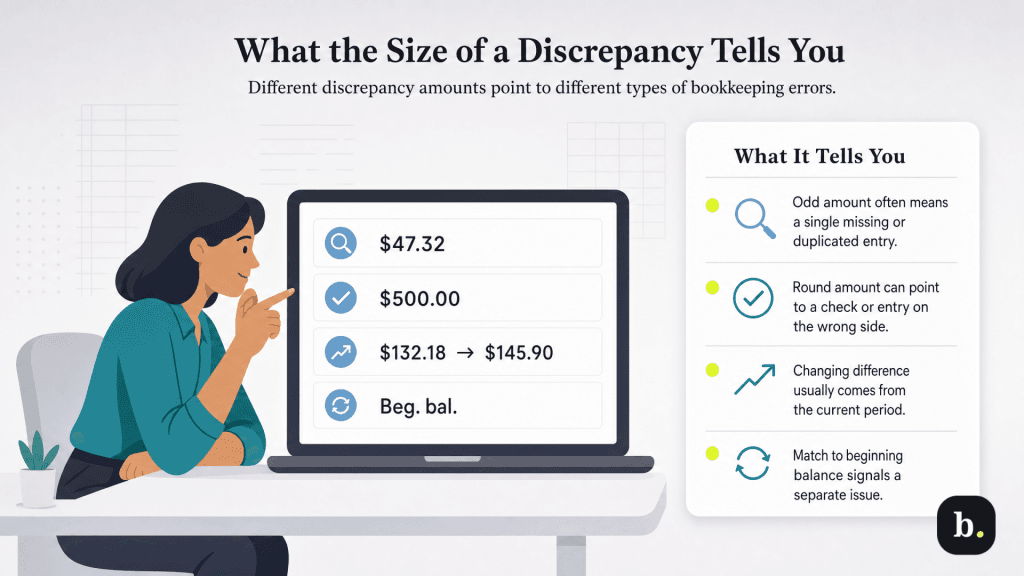
Before diving into individual transactions, look at what kind of number you’re dealing with. An odd, non-round difference (for example, $47.32) usually points to a specific missing or duplicated transaction. These amounts usually indicate some real transaction that hit your register at some point. A round number, especially one that matches a check amount or a recognizable transaction total exactly, often points to something entered twice or entered on the wrong side of the ledger.
A difference that’s grown or shrunk since your last reconciliation, rather than appearing out of nowhere, usually traces back to something in the current period rather than an old, unresolved item. And a discrepancy that exactly matches your beginning balance from last period is its own category entirely (we’ll get into that a bit later.) None of this pinpoints the exact transaction, but it tells you what to check first — that’s important when the alternative is to painstakingly go through every transaction from top to bottom.
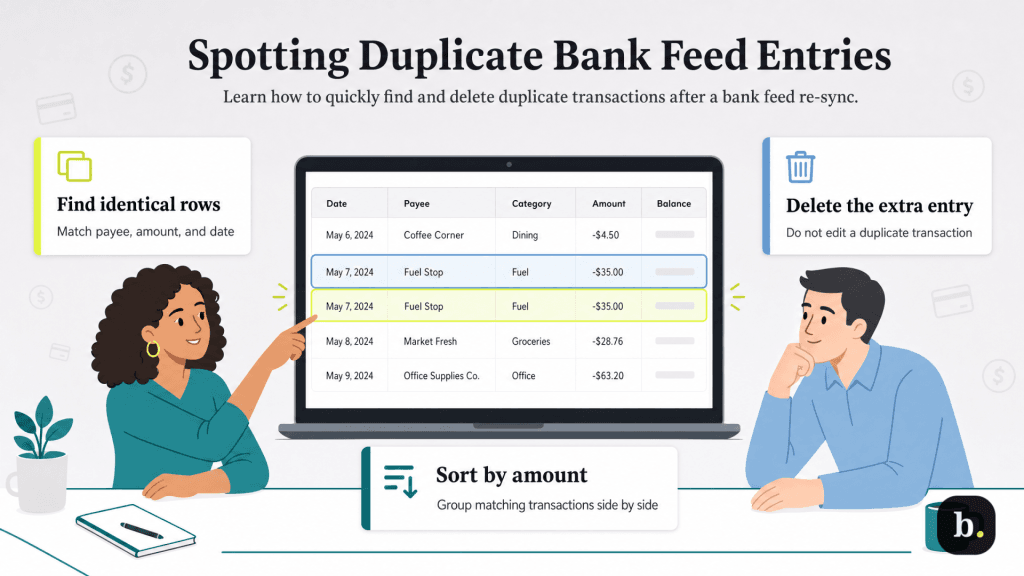
Bank feeds occasionally re-sync after a connection issue, a bank-side update or a manual refresh. When they do, transactions that were already entered can come through a second time. This is especially common after your bank changes something on its end, such as running an update, which can temporarily disconnect and then reconnect your feed.
Look for two virtually identical transactions for the same amount and same payee, usually with the same date or close to it. They’ll appear in your register as if they were separate purchases or deposits, but they’re actually referencing the same thing.
Once you’ve found the duplicates, delete the extra entry rather than editing it, so you’re not left with an entry that has an inaccurate date or memo. If duplicates are appearing regularly, it’s worth checking whether your bank feed is set to automatically add new transactions instead of holding them for review, since batch-added transactions are more prone to this than ones you approve individually.
A transaction that posted to your bank on one date can easily get entered into your books with a different date, particularly for purchases made right at the end of the month. A card swipe on the 30th might not post to your bank until the following month, but if it’s entered into your books on the date of the purchase, it lands in a different reconciliation period than the one your bank statement shows.
This error usually shows up as a transaction that’s in your register but doesn’t appear on the current statement. Or, the other way around: it’s on the statement but you can’t find it in your books for that period, because you already recorded it for the prior month.
To fix this, confirm which date is accurate (the date the bank posted it) and adjust the entry. Alternatively, you could account for it as a timing difference that will resolve itself next period once both records show it in the same window. If this happens at the same point every month with the same vendor or card, it’s worth noting it as a standing timing difference rather than re-investigating it each cycle.
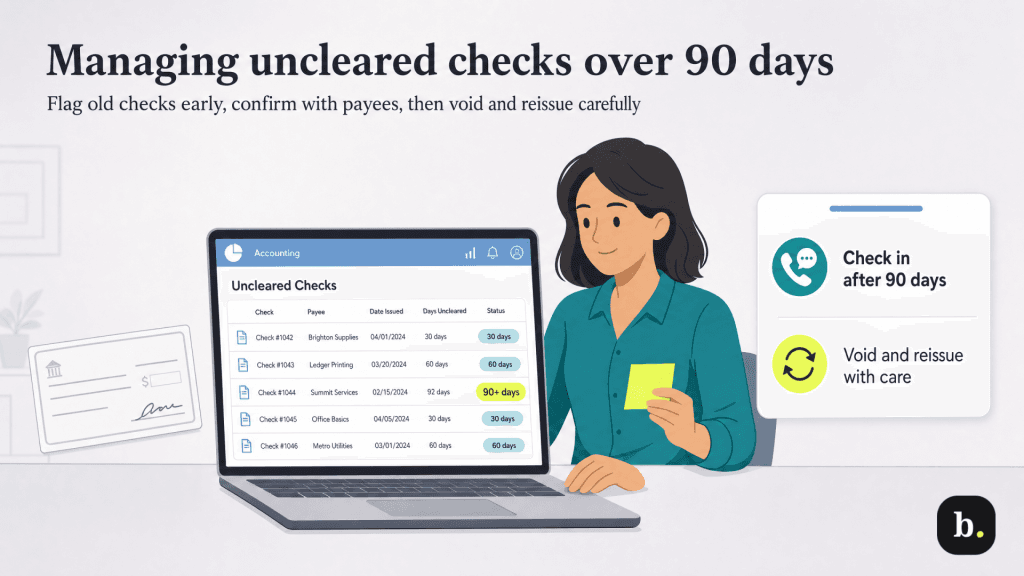
Paper checks that were written and recorded in your books, but never cashed by the payee, will sit as uncleared items on your reconciliation indefinitely if nobody follows up on them. A check that’s 90 days old or older may have been lost, forgotten or never deposited. Most accounting software will flag how long a check has been outstanding directly in the reconciliation window, so you don’t need to calculate the age of each one manually.
Most banks won’t honor a check beyond six months from the date it was written, though the exact window varies by bank and by state. Some banks will decline a stale check well before six months. If a check has been outstanding for an extended period, the safe move is usually to contact the payee, confirm they never received or deposited it, and then void it in your books and reissue a new one if you still owe payment.
Voiding an old check changes your books, so this should happen deliberately; don’t just use voiding checks as a workaround to force your reconciliation to work. If you void a check that the payee eventually does try to deposit, it will bounce, creating a bigger problem than the original discrepancy. Confirm with the payee before voiding anything.
If your current reconciliation won’t balance and none of the above explains it, check whether your beginning balance matches the ending balance from your last completed reconciliation. If it doesn’t, something in a prior reconciled period was edited, deleted or added after that period was closed. Until that error is found and corrected, every future reconciliation will be off by the same amount.
This is usually the hardest discrepancy to track down by scanning transactions, because the change might be small, several months old or something you don’t remember making. A reconciliation discrepancy report is helpful here. This report shows changes made to transactions that were part of a previously completed reconciliation, which is a much faster way to find the culprit than reviewing months of entries by hand. An audit log goes a step further, showing who changed a given transaction and when, which matters if more than one person has access to the books.
Once you’ve found the changed transaction, determine whether the change was a mistake or intentional. If it was a mistake, correct it and your reconciliation should resolve on its own. If it was intentional, you may need to re-open and re-close the affected prior period so the correction is reflected properly. Once resolved, it’s also worth checking whether your books have closing-date protections turned on, which can require a password to edit transactions in an already-reconciled period, to help prevent this kind of change from happening unnoticed again.
Most reconciliation discrepancies resolve using the steps above, usually within an hour or two of focused review. If you’ve worked through all of them and the number still won’t move, or if the discrepancy is large enough that a data-entry error seems unlikely to explain it, it’s a reasonable point to loop in a bookkeeper or accountant rather than keep searching alone. A fresh set of eyes also tends to catch something a business owner who’s been staring at the same numbers for an hour might have started to overlook. For a broader look at where books commonly go wrong, see our list of accounting mistakes your small business should avoid.
This is especially true if you suspect the issue might not be an error at all. Unauthorized transactions, for instance, warrant a different kind of attention than a duplicate entry. Document what you’ve already ruled out before handing it off; knowing that duplicates, timing differences and stale checks have already been checked will save whoever picks it up from repeating the same first hour of work you just did.
