Business.com aims to help business owners make informed decisions to support and grow their companies. We research and recommend products and services suitable for various business types, investing thousands of hours each year in this process.
As a business, we need to generate revenue to sustain our content. We have financial relationships with some companies we cover, earning commissions when readers purchase from our partners or share information about their needs. These relationships do not dictate our advice and recommendations. Our editorial team independently evaluates and recommends products and services based on their research and expertise. Learn more about our process and partners here.
While commercial software can handle basic file synchronization, a custom PowerShell script gives businesses more control over complex workflows.


You can buy dedicated synchronization tools, but they don’t always offer the level of flexibility some teams need. A well-built PowerShell script lets you create a setup that fits your exact environment instead of forcing your processes into a preset tool. In this guide, we’ll walk through how to sync files and folders — and remove outdated ones — using Microsoft PowerShell.
Moving files between directories is usually a simple task. You might drag and drop icons or execute a basic command like the one below:
Copy-Item -Path C:\Folder* -Destination \SERVER2\c$\Folder2
However, copying is not the same as synchronizing. If you need a mirror image of a folder — where the destination automatically updates to match the source — you need a sync process. Syncing works more like an intelligent copy process because it analyzes the state of your data to improve efficiency.
Syncing involves the following:
Off-the-shelf tools don’t always provide the level of logic or scheduling some IT teams require. In these cases, scripting your own synchronization tool can be a more flexible approach.
Joey D’Antoni, a Microsoft Data Platform and Azure MVP and senior Azure infrastructure architect, is a strong proponent of using PowerShell for data-driven tasks. “PowerShell is a really powerful tool set,” D’Antoni said. “It can be used to do just about anything in the Windows, Azure, or even Linux/MacOS ecosystem.”
D’Antoni noted that automating file transfers is an excellent entry point for learning the language. “Figure out the PowerShell commands to accomplish this — write error handling and build looping and logging structures,” he said. “Then you are way ahead with PowerShell.”
PowerShell offers a high level of flexibility compared with many off-the-shelf applications. You can program it to execute logic that fits your specific infrastructure. You can also make scripts easier for teammates to use by building an interactive menu inside PowerShell, including simple point-and-click options for syncing tasks.
There are multiple approaches to file synchronization in PowerShell. Advanced users might utilize file hashing or event triggers, but for this guide, we focus on a practical method using built-in cmdlets. We’ll also run the script manually rather than setting up automated triggers.
Just as you would with websites and other URLs when managing IIS application pools with PowerShell, the first thing you must do when syncing files between folders is define the source and destination paths. Here’s how:
$Folder1Path = ‘C:\Folder1’
$Folder2Path = ‘C:\Folder2’
If you want to follow along, create two test folders on your local drive named “Folder1” and “Folder2,” then add a few identical text files to each location.
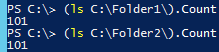
Start by generating an inventory of both directories so you can identify any discrepancies. The Get-ChildItem cmdlet retrieves file objects from each path.
$Folder1Files = Get-ChildItem -Path $Folder1Path
$Folder2Files = Get-ChildItem -Path $Folder2Path
These commands capture the contents of your folders into variables. The script can now analyze the file lists stored in $Folder1Files and $Folder2Files.
At the center of this process is the Compare-Object cmdlet. This utility analyzes two sets of objects and identifies which items exist in one location but not the other.
Compare-Object -ReferenceObject $Folder1Files -DifferenceObject $Folder2Files
If the folders match, the cmdlet returns no results. However, if there is a discrepancy — such as a new file in one folder — the output highlights the difference. Microsoft documentation notes that Compare-Object is commonly used to evaluate differences between object collections in PowerShell.
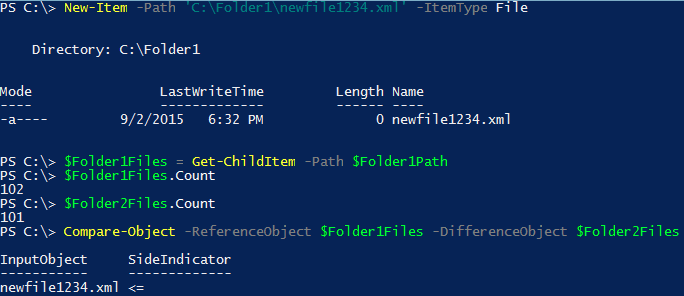
In that example, you created a dummy file in $Folder1, causing the folders to be out of sync. Compare-Object shows that newfile1234.xml is in $Folder1, but not in $Folder2.
Once the difference is identified, you can program the script to copy the missing file to the destination folder. That’s similar to how you would manage file system ACLs with PowerShell to identify and address what’s missing.
To sync the folders, you must create a script like this:
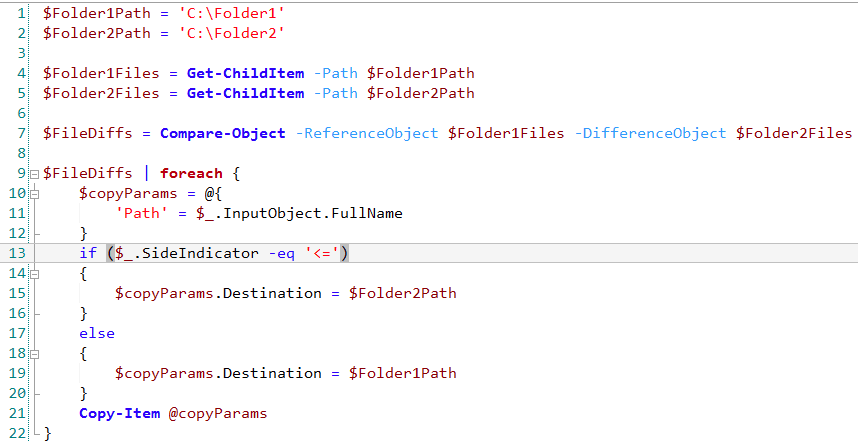
The script captures the output of Compare-Object, loops through each difference and copies the specific files required to make the folders match. It works well, but you’re not done yet.
Fully synchronizing folders involves more than adding new files; it can also mean removing outdated ones. If a file is deleted from the source, it should often be removed from the backup location to maintain an accurate mirror.
In the following example, we assume a file was deleted from the source folder ($Folder1). We use Compare-Object to identify this “orphan” file in $Folder2.

Once identified, you can pipe the object into a removal command to delete it from the destination folder.
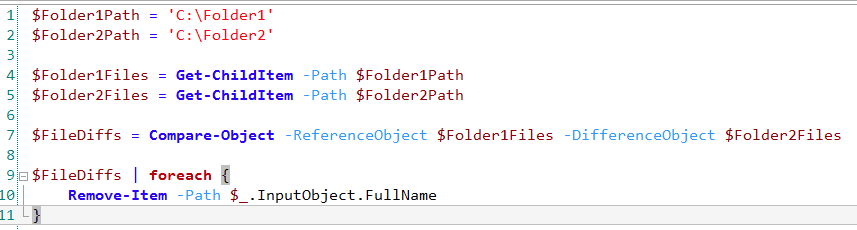
The target file is removed, and your folders are back in sync.
Syncing folders is like managing user profiles in PowerShell. In both cases, scripts help enforce consistency through automation. With user profiles, you ensure each user has the same settings; with syncing folders, you ensure each folder has the same files.
D’Antoni emphasized the importance of testing when rolling out changes. “Automation is awesome, but very powerful,” he cautioned. “If you can change something on thousands of servers at once, that’s awesome. But you can also break thousands of servers very quickly. Pro tip: PowerShell has a -whatif flag to test your code without actually running it. Even after that, always test on a subset of systems.”
Many IT teams use PowerShell to manage complex cloud environments and data workflows, but the same core ideas apply to everyday file management tasks. According to D’Antoni, building these foundational skills can help you grow into more advanced automation work. Consider the following advice:
Mark Fairlie contributed to this article. Source interviews were conducted for a previous version of this article.