Your free business.com+ membership unlocks exclusive tech deals and advisor support
Join Free
BDC Hamburger Icon

Menu

Close
BDC Logo with Name
Search Icon
Search Icon
Advertise with us
Advertising Disclosure
Close
Advertising Disclosure

Business.com aims to help business owners make informed decisions to support and grow their companies. We research and recommend products and services suitable for various business types, investing thousands of hours each year in this process.

As a business, we need to generate revenue to sustain our content. We have financial relationships with some companies we cover, earning commissions when readers purchase from our partners or share information about their needs. These relationships do not dictate our advice and recommendations. Our editorial team independently evaluates and recommends products and services based on their research and expertise. Learn more about our process and partners here.

How to Set Up a Business Phone System

Your new business phone system may require both software and hardware setup. This guide will walk you through the steps you need to take.


author image
Written by:
Adam Uzialko, Senior Editor
author image
Editor verified:
Chad Brooks,Managing Editor
Last Updated May 27, 2026
Business.com earns commissions from some listed providers. Editorial Guidelines.
Table Of Contents Icon

Table of Contents

Open row

Modern cloud-based phone systems can be configured and operational in a single afternoon, often without any physical equipment at all. Whether you’re setting up phone service for a new company or replacing an aging system with a Voice over Internet Protocol (VoIP) system, this guide walks you through each step, from assessing your needs to optimizing your system after launch.

Step 1: Assess your communications needs

Before you start comparing providers, take stock of how your team communicates. A few key questions will shape every decision that follows:

  • How many employees need their own phone line or extension?
  • Does your team work in one office, across multiple locations or remotely?
  • Do you handle high volumes of inbound calls, or is your phone usage mostly outbound?
  • Do you need video conferencing, team messaging or SMS capabilities alongside voice?
  • Will you need international calling?

Your answers determine the type of plan, the number of lines and the features you’ll need. A five-person remote team has very different requirements than a 30-seat call center or a restaurant juggling phone orders during a dinner rush.

Step 2: Choose a provider and plan

Once you know what you need, evaluate providers on pricing, including features versus paid add-ons, contract terms, integration with your existing tools and customer support quality. Most providers offer tiered plans, and not every employee needs the same tier. Platforms like Zoom Phone and RingEX let you mix and match plans by role, while Vonage offers à la carte add-ons so you only pay for what you need.

Take advantage of free trials before committing. Dialpad, RingEX and GoTo Connect offer trial periods ranging from 14 to 30 days, giving you time to test the platform in real working conditions.
TipBottom line
If you need help choosing a provider, consider our picks for the best business phone systems. We’ve spent hundreds of hours reviewing dozens of providers in the space to make our selections.

Step 3: Set up your phone numbers

Setting up business phone numbers

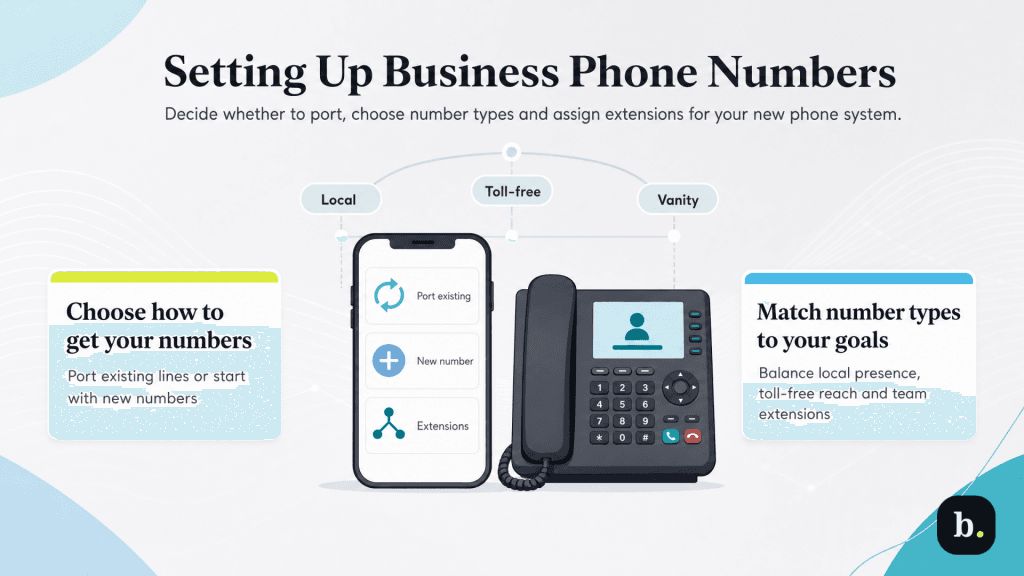
With a provider selected, the first hands-on step is establishing your business phone numbers. You’ll typically face three decisions here.
  • Port or start fresh. If you already have a business phone number that customers know, you’ll want to port (transfer) it to your new provider. Most VoIP platforms handle this process for you, but it typically takes one to two weeks to complete. During that window, your old service stays active so you don’t miss calls. If you’re starting from scratch, your provider will assign new numbers immediately upon setup.
  • Choose your number types. You’ll decide between local numbers, toll-free numbers and, in some cases, vanity numbers (like 1-800-FLOWERS). Local numbers build regional credibility; toll-free numbers project a national presence. Some providers include both by default. Ooma, for example, bundles a toll-free number and a company number with every account, while others charge extra.
  • Assign lines and extensions. Decide which employees get dedicated direct lines and which share extensions or ring groups. Direct lines are important for salespeople and executives who need to be reachable by name. Extensions work well for departments (e.g., “Dial 2 for billing”). Most platforms let you assign three-, four- or five-digit extensions through the admin portal.

Step 4: Configure call routing and your auto attendant

graphic of call routing

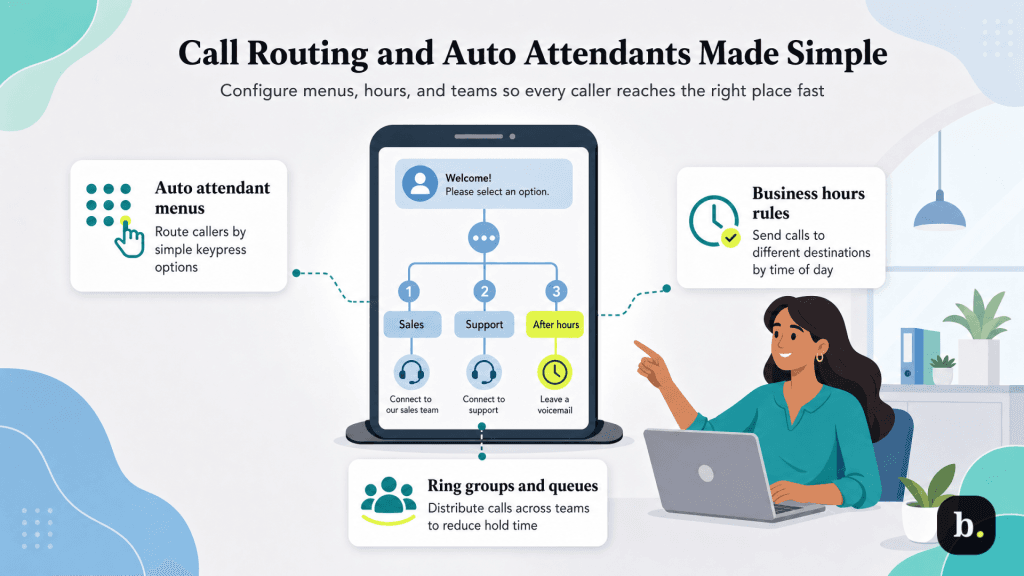
Call routing is where your phone system starts working for you rather than just connecting calls. This step determines what happens when someone dials your business number: who answers, in what order and what the caller hears while they wait.
  • Set up your auto attendant. An auto attendant is the automated greeting and menu that answers your main line (“Press 1 for sales, press 2 for support”). Most platforms provide a setup wizard that walks you through recording or uploading a greeting, defining menu options and assigning each option to a destination, whether that’s a specific employee, a ring group or a voicemail box. GoTo Connect offers a drag-and-drop visual dial plan editor that makes this especially intuitive, while Ooma’s Express Setup Assistant guides first-time admins through the process in three steps.
  • Define business hours and after-hours rules. Configure your system to route calls differently depending on the time of day. During business hours, calls might ring to your front desk or a ring group. After hours, they can go directly to voicemail with a custom greeting or forward to an on-call employee’s cell phone.
  • Create ring groups and call queues. Ring groups let you bundle employees who handle the same type of call. When a customer selects “support,” the system rings everyone in that group simultaneously or sequentially until someone picks up. Call queues take this a step further for high-volume scenarios, placing callers in a virtual line and routing them to the next available agent. Both features are standard on most business phone platforms, though some reserve call queues for higher-tier plans.

Step 5: Set up your hardware and software

graphic of voip hardware and software

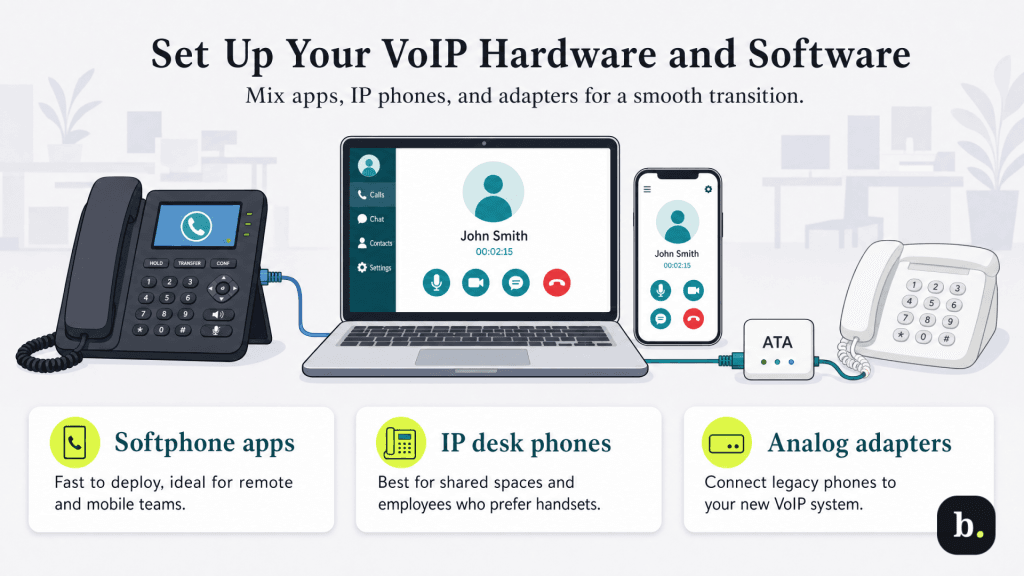
One of the biggest advantages of modern VoIP systems is flexibility in how your team actually uses the phone. You have three main options:

  • Softphone apps (no hardware needed). Every major provider offers desktop and mobile applications that turn your existing computer, tablet or smartphone into a full-featured business phone. You can make and receive calls, transfer callers, check voicemail, send texts and join video meetings all from the app. For many small businesses and remote teams, this is the only setup required. Dialpad and Zoom are particularly strong as software-only solutions, with clean interfaces and reliable mobile apps.
  • IP desk phones. If your office environment calls for physical handsets (a reception desk, a conference room or employees who simply prefer a traditional phone) you’ll need IP phones that connect to your network via Ethernet or Wi-Fi. Many providers sell or lease compatible hardware directly, and some ship phones preconfigured to your account so they’re ready to use out of the box. Ooma, for example, ships preconfigured IP phones within 24 hours of purchase. Vonage supports a range of desk phones, including models with large digital screens and multiple line support.
  • Analog telephone adapters. If you have traditional analog phones you’d like to keep using, an analog telephone adapter (ATA) connects them to your VoIP service. This is a cost-effective bridge for businesses transitioning from a legacy system.

Regardless of which approach you choose, the setup process for most cloud-based systems is straightforward. Softphone apps download in minutes. IP phones typically need to be connected to your network and registered with your provider, which the admin portal handles with step-by-step instructions.

Step 6: Integrate with your business tools

A phone system becomes significantly more valuable when it talks to the other software your team uses every day. CRM integration is the most impactful: when a customer calls, their contact record pops up on the screen with their history, recent interactions and open support tickets. When the call ends, the system automatically logs it.

The depth of integration varies by provider. RingEX offers a library of more than 500 integrations covering CRM, helpdesk, project management and collaboration platforms. Aircall integrates with more than 250 tools including Salesforce, HubSpot, Zendesk and Shopify, making it a strong fit for sales and support teams. Dialpad connects natively with Google Workspace and Microsoft 365 on its base plan, with CRM integrations available on higher tiers.

Even if your team doesn’t use a CRM yet, look for integrations with the tools you do rely on, like Google Calendar, Microsoft Teams, Slack or your project management platform. Small automations, like a missed call triggering a follow-up task in your project board, add up to meaningful efficiency gains over time. Ooma’s Zapier integration, for instance, enables no-code automation across thousands of apps.

Step 7: Train your team and go live

A well-chosen phone system only delivers value if your team actually knows how to use it. The good news is that most modern platforms are designed to be intuitive, and many employees will find the softphone apps familiar enough to navigate on their own. Still, a structured rollout reduces friction and ensures nothing falls through the cracks.

  • Run an internal test before going live. Have a few team members place test calls to verify that the auto attendant greeting sounds professional, ring groups route correctly, voicemail boxes are set up and call quality meets expectations. Test from both desk phones and softphone apps, and include at least one call from a mobile device to check the experience for remote workers.
  • Walk your team through the essentials. Focus training on the features employees will use daily: making and receiving calls, transferring callers, checking voicemail, using the company directory and toggling Do Not Disturb mode. For managers and team leads, cover call reporting, monitoring tools and how to adjust ring group settings. Keep training brief and practical; most platforms offer short tutorial videos and help center articles that employees can reference on their own.
  • Set up voicemail greetings. Every employee with a direct line or extension should record a professional voicemail greeting before launch day. A generic system-generated message signals to callers that the line isn’t properly set up. Many platforms also support voicemail-to-email and voicemail transcription, which should be enabled during setup so employees don’t miss messages.
  • Assign admin roles. Designate who can manage system settings, add or remove users and view call reports. Most platforms support multiple admin tiers so you can give a department manager limited access without exposing billing or account-level settings.

Strong vendor support during this phase makes a real difference. Nextiva stands out with 24/7 phone support and a straightforward onboarding process, while Ooma’s Express Setup Assistant is designed specifically for first-time administrators who don’t have an IT background.

Step 8: Optimize and scale over time

Launching your phone system isn’t the end of the process — it’s the beginning of an ongoing cycle of refinement. The data your system generates from day one can reveal opportunities to improve both the caller experience and your team’s efficiency.

  • Use call analytics to make informed adjustments. Most business phone platforms include reporting dashboards that track call volume, average hold times, missed call rates and peak calling hours. Review these regularly, especially in the first few weeks. If callers are consistently waiting too long, you may need to add agents to a ring group or adjust your call queue settings. If a particular auto attendant menu option is rarely used, simplify the menu.
  • Add AI tools as your needs evolve. Many providers now include AI-powered features like real-time call transcription, post-call summaries, sentiment analysis and voice coaching. Dialpad’s voice intelligence engine, for example, generates searchable transcripts and action items from every recorded call and can coach agents in real time. These features may not be necessary at launch, but they become increasingly valuable as call volume grows and consistency matters more.
  • Know when it’s time to scale up. Several signs indicate you’ve outgrown your current setup: frequent busy signals or long hold times, employees maxing out their call capacity, growing demand for features your current plan doesn’t include (like call recording, advanced analytics or contact center capabilities) or expansion into new locations. Cloud-based systems make scaling straightforward; adding users, upgrading plan tiers or expanding to new sites usually takes minutes from the admin dashboard. GoTo Connect, for instance, lets businesses scale from a standard phone system to a full omnichannel contact center by simply adding licenses, without switching platforms.

Setting up a business phone system no longer requires specialized IT knowledge or a significant upfront investment. Cloud-based VoIP platforms have streamlined the process to the point where a small business can go from choosing a provider to taking its first call in a single day. The key is matching your communication needs to the right provider and plan, configuring the system thoughtfully and then using the data it generates to improve over time.

Did you find this content helpful?
Verified CheckThank you for your feedback!
author image
Written by: Adam Uzialko, Senior Editor
Adam Uzialko, the accomplished senior editor at Business News Daily, brings a wealth of experience that extends beyond traditional writing and editing roles. With a robust background as co-founder and managing editor of a digital marketing venture, his insights are steeped in the practicalities of small business management. At business.com, Adam contributes to our digital marketing coverage, providing guidance on everything from measuring campaign ROI to conducting a marketing analysis to using retargeting to boost conversions. Since 2015, Adam has also meticulously evaluated a myriad of small business solutions, including document management services and email and text message marketing software. His approach is hands-on; he not only tests the products firsthand but also engages in user interviews and direct dialogues with the companies behind them. Adam's expertise spans content strategy, editorial direction and adept team management, ensuring that his work resonates with entrepreneurs navigating the dynamic landscape of online commerce.