Business.com aims to help business owners make informed decisions to support and grow their companies. We research and recommend products and services suitable for various business types, investing thousands of hours each year in this process.
As a business, we need to generate revenue to sustain our content. We have financial relationships with some companies we cover, earning commissions when readers purchase from our partners or share information about their needs. These relationships do not dictate our advice and recommendations. Our editorial team independently evaluates and recommends products and services based on their research and expertise. Learn more about our process and partners here.
Managing Files Over SFTP With PowerShell
Built-in support for Secure File Transfer Protocol (SFTP) is not available in PowerShell, but easy workarounds exist.
Business.com earns commissions from some listed providers. Editorial Guidelines.
Table of Contents
Secure file transfer protocol (SFTP) is a safe way to transfer files between hosts over the internet. While PowerShell does not offer built-in support for SFTP, you can add this functionality using the free Posh-SSH module. A wide range of PowerShell modules allow you to add additional features for various tasks. This guide explains how to manage files over SFTP using PowerShell and outlines the operational benefits of this automation.
How to manage files over SFTP with PowerShell
Tony Arulpiragasam, former infrastructure specialist for business applications at engineering and professional services firm WSP, emphasized that using PowerShell with the Posh-SSH module is an effective way to manage and automate SFTP file transfers.
“PowerShell is a useful tool for SFTP file management because it allows for safe automation, interacts easily with scripts and provides the flexibility required to perform repetitive operations quickly,” Arulpiragasam explained. “IT [information technology] pros can use modules like Posh-SSH to improve procedures and boost productivity.” This method also supports safe file handling, task automation and improved workflow management.
Managing files over SFTP with PowerShell involves installing the free Posh-SSH module, setting it up, working with your files and then ending the session. We’ll explain each step in more detail below.
1. Installing the free Posh-SSH module
The Posh-SSH module is available on the PowerShell Gallery.You can install it by running the following command:
Install-Module -Name Posh-SSH
Verify the installation and view the available commands by running:
PS C:> Get-Command -Module posh-ssh -Noun *SFTP*
After successful installation, you will have access to a suite of SFTP-specific commands, including:
CommandType
Name
Function
Get-SFTPChildItem
Function
Get-SFTPContent
Function
Get-SFTPLocation
Function
Get-SFTPPathAttribute
Function
Get-SFTPSession
Function
New-SFTPFileStream
Function
New-SFTPItem
Function
New-SFTPSymlink
Function
Remove-SFTPItem
Function
Remove-SFTPSession
Function
Rename-SFTPFile
Function
Set-SFTPContent
Function
Set-SFTPLocation
Function
Set-SFTPPathAttribute
Function
Test-SFTPPath
Cmdlet
Get-SFTPFile
Cmdlet
New-SFTPSession
Cmdlet
Set-SFTPFile
The following steps focus on utilizing the most critical commands from this list.
Anand Damdiyal, founder and CEO of AI-driven finance solutions provider Spacewink, stressed the importance of keeping the Posh-SSH module updated. “Keep the Posh-SSH module updated, [as this] ensures you can take advantage of new functionality like improved command sets and security enhancements like bug fixes and patches so everything runs smoothly and reliably,” Damdiyal explained.
To transfer files over SFTP, you need to establish a session with the SFTP server. This only needs to be done once. While you could create a new session for every task, this approach wouldn’t be efficient.
Instead, create a single SFTP session using the New-SFTPSession command. To simplify authentication, avoid managing certificates and instead use a username and password. The New-SFTPSession has a Credential parameter that accepts a PSCredential object. Use the Get-Credential command to prompt the user for a username and password.
$credential = Get-Credential
Once you have the username and password captured, pass them to the New-SFTPSession command along with the AcceptKey parameter. The AcceptKey parameter will automatically accept the key returned from the SFTP server, avoiding manual prompts:
Damdiyal advised using try-catch blocks when setting up SFTP sessions. “Wrap commands in try-catch blocks [to] capture potential issues, such as network interruptions or authentication failures and log them for easier debugging,” Damdiyal explained.
Arulpiragasam emphasized the importance of establishing secure connections and properly managing file paths to avoid errors. “Before deploying scripts, test them in a controlled environment to ensure reliability and avoid inadvertent data overwrites,” Arulpiragasam advised. “Always include error handling in your scripts to improve reliability and log essential actions to simplify troubleshooting.”
Arulpiragasam recommended the following approach to ensure your session setup is robust and handles unexpected issues effectively:
Once the session is established and you return to the console, you can perform various file operations. To download a file from the server to your local machine, deploy the Get-SFTPFile function:
$getParams = @{
SessionId = $session.SessionId
LocalPath = ‘C:\localfile.txt’
RemoteFile = ‘/remotepath/remoteFile.tx’
}
Get-SFTPFile @getParams
If you need to remove a file from the SFTP server, the Remove-SFTPItem function is just as straightforward as the Get-SFTPFile function:
Exercise caution during file deletion and downloads. Always double-check your file paths to maintain data integrity.
4. Ending the session
Upon completing your tasks, it is critical to properly disconnect and remove the SFTP session. While you can run Remove-SFTPSession directly, verifying the session’s status first prevents errors. You can verify the session’s existence using Get-SFTPSession.
First, confirm the session is active. Then, disconnect it and remove it from your environment using this script:
if ($session = Get-SFTPSession -SessionId $session.SessionId)
{
$session.Disconnect()
}
$null = Remove-SftpSession -SftpSession $session
The next time you need to perform any kind of SFTP task, check out the Posh-SSH PowerShell module.
The benefits of using PowerShell to manage files over SFTP
PowerShell is a highly adaptable and versatile tool with numerous uses. For example, you can:
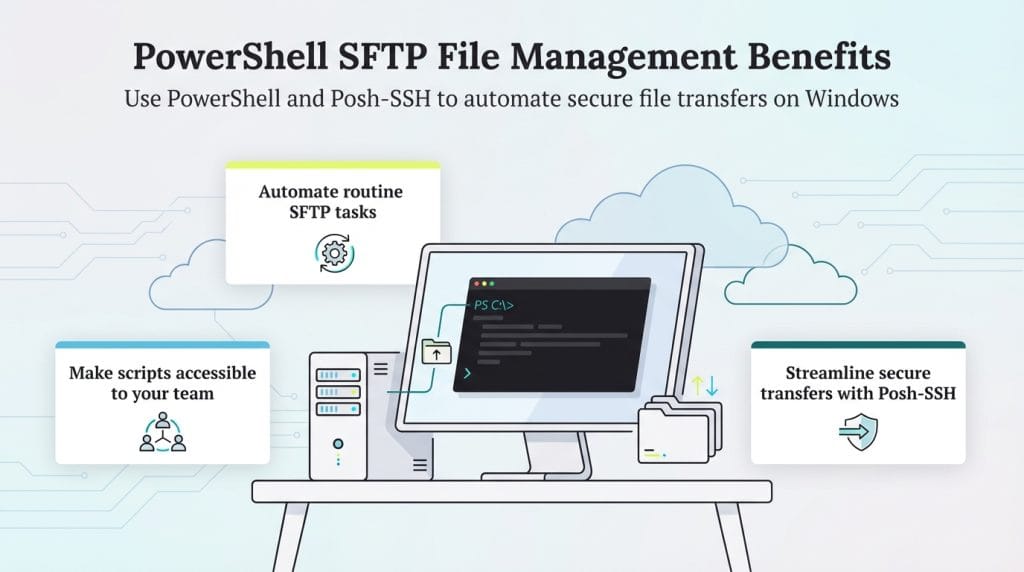
When it comes to managing files over SFTP in Windows-based systems, PowerShell offers the following key benefits:
Automation for straightforward tasks: Integrating SFTP into PowerShell allows you to script and automate simple tasks, reducing the likelihood of manual errors and saving time. “PowerShell’s flexibility and its ability to interact with other technologies make it easier to automate repetitive tasks and securely manage IoT [Internet of Things] data,” Arulpiragasam explained.
Accessibility for all team members: PowerShell truly shines in its ability to handle complex tasks with clear, easy-to-read code. This makes it a more accessible system for teams with varying programming skill levels, ensuring collaboration and improved productivity.
Enhanced file management with the Posh-SSH module: The Posh-SSH module further enhances file management efficiency by supporting a wide range of SFTP operations, such as uploading, downloading and deleting files. This makes your workflows more effective and streamlined.
Secure file transfer automation: When you pair PowerShell with the free Posh-SSH module, you can easily automate your file transfers. Damdiyal emphasized that this approach works seamlessly with Windows, simplifying and speeding up file management. “Its scripting capabilities enable dynamic file handling, secure credential management and error logging, making it a versatile solution for businesses of all sizes,” Damdiyal explained.
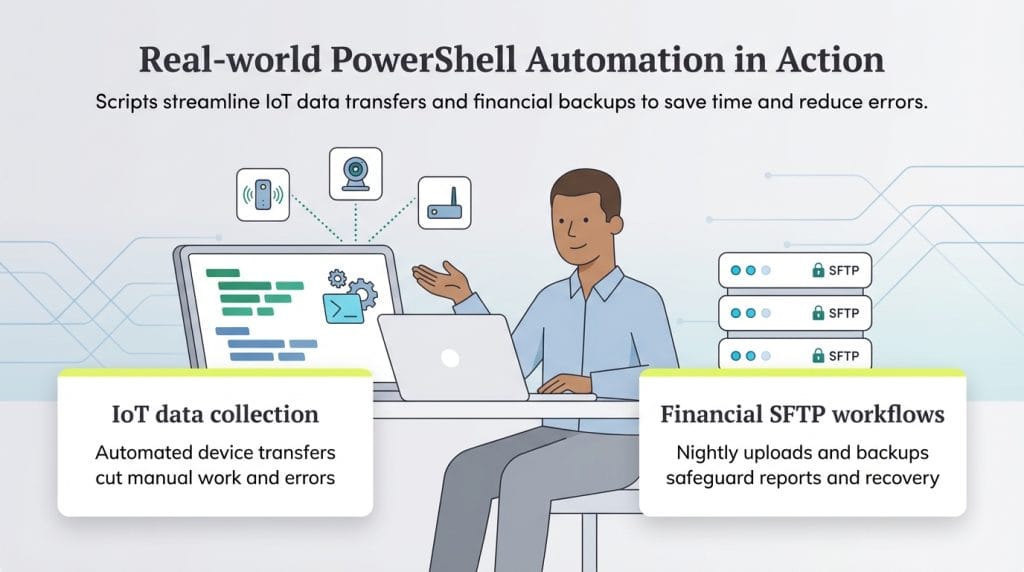
Real-world examples
PowerShell is also effective in real-world commercial environments:
IoT data transfers: Arulpiragasam’s company automated IoT data transfers using a PowerShell script and the Posh-SSH module. “The script securely connects to each IoT device, retrieves the required files and stores them locally,” Arulpiragasam explained. “Automating this process with Windows Task Scheduler reduced human labor, minimized errors and ensured timely data collection.”
Financial services: Damdiyal has used PowerShell to automate nightly SFTP uploads, ensuring the secure and timely delivery of transaction reports. “IT teams also leverage it to create redundant backups, ensuring data safety and quick recovery during emergencies,” Damdiyal noted. “This automation reduces errors and improves efficiency, saving time for businesses.”
Best practices for managing files over SFTP with PowerShell
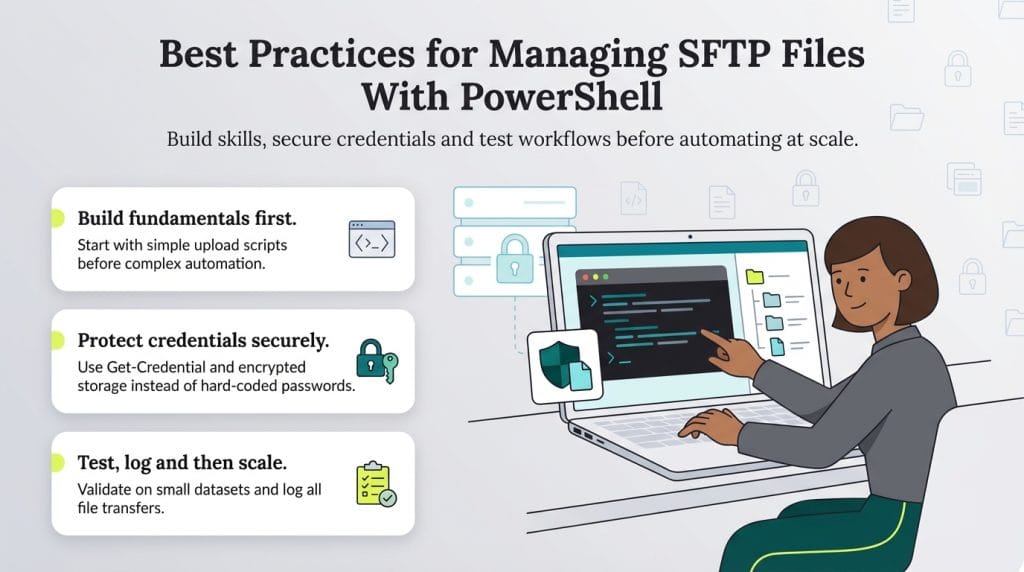
To maximize the effectiveness of your SFTP operations, adopt these expert-recommended strategies:
Start with the basics: Beginners should focus on foundational skills. “Learn the fundamentals of PowerShell, like cmdlet syntax and script creation,” Damdiyal recommended. “Begin with simple tasks, such as uploading a file, to build confidence before tackling complex workflows.”
Prioritize security: Damdiyal stressed the importance of protecting sensitive credentials. “Use PowerShell’s secure mechanisms, like encrypted credential storage or the Get-Credential cmdlet, to protect your login information,” Damdiyal advised. Similarly, Arulpiragasam cautioned against saving usernames and passwords directly in scripts. “Instead, use secure methods like Get-Credential or encrypted credential files,” Arulpiragasam advised.
Focus on testing and error handling: Validation is key to preventing data loss. Damdiyal noted that testing scripts in a controlled environment to identify potential errors or issues is crucial. Similarly, Arulpiragasam emphasized the importance of small-scale testing. “Running scripts on large, production-level data without testing on a smaller scale can result in errors or data loss,” Arulpiragasam explained. “So, you should always test on smaller datasets first.”
Implement file logging: Keep a record of every transaction. “Incorporate logging for all file operations, whether downloading, uploading or deleting,” Damdiyal advised. “Logs help maintain an audit trail and simplify troubleshooting in case of errors.”
Mark Fairlie contributed to the reporting and writing in this article. Source interviews were conducted for a previous version of this article.
Adam Bertram is an IT expert and business owner who has spent decades advising on network administration and security, designing and building infrastructure, and creating and teaching courses on Windows Server, Powershell and more. While maintaining his own IT business, he has provided hands-on DevsOps services for clients like JPMorgan Chase.
At business.com, Adam covers the ins and outs of PowerShell, helping companies improve their Windows configurations and automations.
Bertram, who has a degree in computer science, holds Microsoft, Cisco and CompTIA credentials. He has written numerous tutorials, guides and books, including "Building Better PowerShell Code: Applying Proven Practices One Tip at a Time."