Business.com aims to help business owners make informed decisions to support and grow their companies. We research and recommend products and services suitable for various business types, investing thousands of hours each year in this process.
As a business, we need to generate revenue to sustain our content. We have financial relationships with some companies we cover, earning commissions when readers purchase from our partners or share information about their needs. These relationships do not dictate our advice and recommendations. Our editorial team independently evaluates and recommends products and services based on their research and expertise. Learn more about our process and partners here.
Write a tool in PowerShell to gather all the data from a web page.


Web scraping tools are helpful resources when you need to gather data from various web pages. E-commerce teams often track competitor pricing this way, while marketing teams may pull contact details or monitor sentiment across multiple sites. Some online sellers offer APIs or price feeds, but many do not. In these scenarios, custom web scraping may be one of the only practical ways to obtain this competitive business intelligence, especially since website design varies and each site has a unique structure.
While languages like Python are popular for web scraping, scripting languages like PowerShell can help you build reliable tools using infrastructure you likely already manage, whether you’re automating data collection or managing IIS application pools using PowerShell. Below, we’ll explain how PowerShell web scraping works and walk through the steps to build a simple scraping tool.
Web scraping involves parsing an HTML web page to pull out the pieces of data you need. Because HTML pages follow predictable patterns, you can target specific elements and convert them into semi-structured results, which can then be exported into spreadsheets or databases that teams can analyze, share or import into other tools.
However, the “semi” qualifier is important. Most pages aren’t perfectly formatted behind the scenes and may contain website design mistakes and inconsistencies, so your output may not be perfectly structured.
As you start building scrapers, remember that web page structures vary widely. If even a small element changes, your tool may stop working. For this reason, it’s important to focus on the basics first, then build more specific tools for individual web pages.
Scripting languages like Microsoft PowerShell — along with a little ingenuity and some trial and error — can help you build reliable web scraping tools using existing PowerShell modules that pull information from many different web pages. Because PowerShell comes pre-installed on most Windows systems, it’s a particularly good option for IT professionals who want to automate scraping tasks using tools they likely already have available.
Federico Trotta, a technical writer and data scientist who has authored numerous articles on web scraping and data analysis, noted that PowerShell’s tight integration with Windows makes it easily accessible without requiring additional installations or dependencies. “Additionally, its compatibility with .NET libraries provides a layer of extensibility for more advanced needs,” Trotta added.
That accessibility also contributes to PowerShell’s widespread use. According to the 2025 Stack Overflow Developer Survey, PowerShell is used extensively by over 23 percent of professional developers, making it a practical and widely supported choice for administrative automation tasks.
Still, Trotta cautioned that PowerShell may not be suitable for more complex projects. “When it gets more complex, use different tools or technologies,” Trotta advised. “One of the main limitations is that with PowerShell, you can only scrape static HTML content. When pages have dynamically loaded content from JavaScript, you can overcome this by using Selenium.”
We’ll use the Invoke-WebRequest cmdlet to get started. It pulls down web page data so you can focus on parsing the information you actually need, instead of handling the raw request process yourself.
Trotta emphasized the importance of mastering this method. “To tie to PowerShell, in the beginning, I would suggest learning the methods Invoke-WebRequest and Invoke-RestMethod, as these cmdlets form the backbone of most PowerShell scraping scripts,” Trotta explained. “In particular, the Invoke-WebRequest cmdlet gets content from a web page on the internet; the Invoke-RestMethod cmdlet, instead, sends HTTP and HTTPS requests to REST web services that return richly structured data.”
With Invoke-WebRequest, let’s explore how a web scraper views a web page and extracts its content.
To get started, let’s use a simple web page everyone is familiar with — Google.com — and see how a web scraping tool views it.
First, pass Google.com to the Invoke-WebRequest -Uri parameter and inspect the output. This sends a standard GET request to the server, similar to how your browser retrieves a page.
$google = Invoke-WebRequest -Uri google.com
This output represents the entire Google.com page, wrapped in a PowerShell object you can explore and parse.
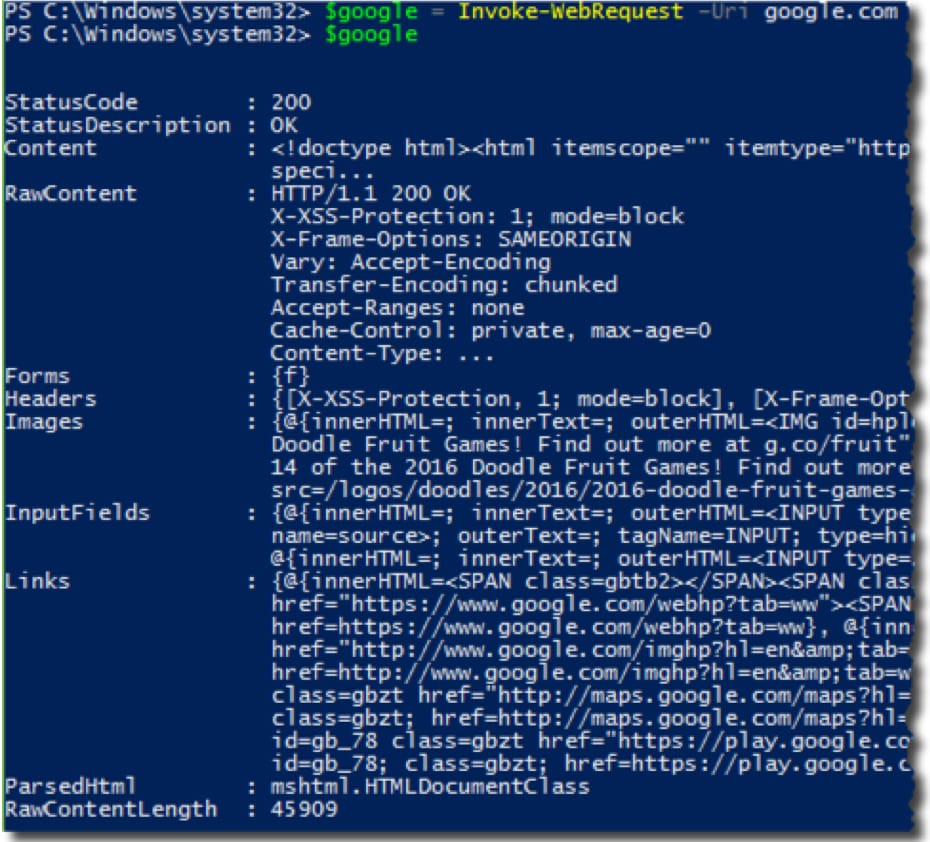
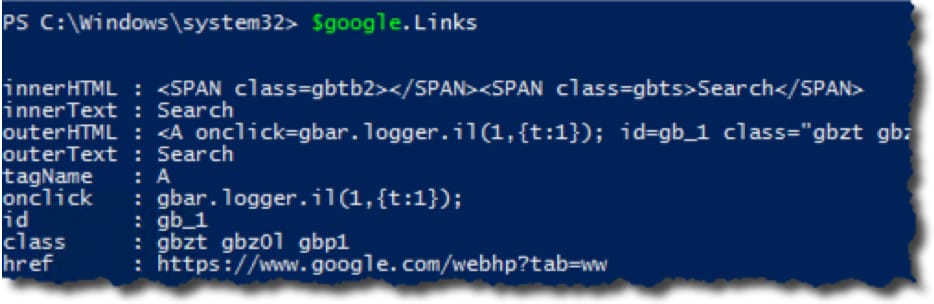
Now let’s see what information you can pull from this web page. For example, say you need to find all the links on the page. This is common for businesses building lead lists or mapping out a competitor’s site structure. To do this, reference the Links property. This enumerates the various properties of each link on the page.
Perhaps you just want to see the URL each link points to:
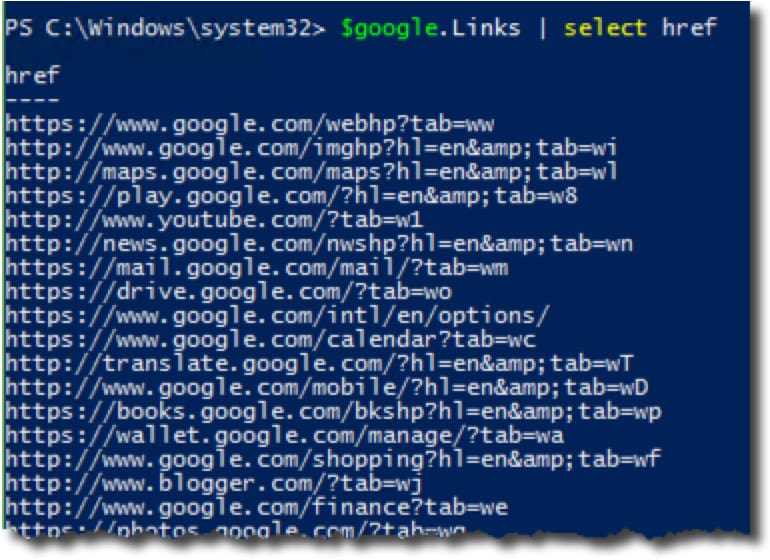
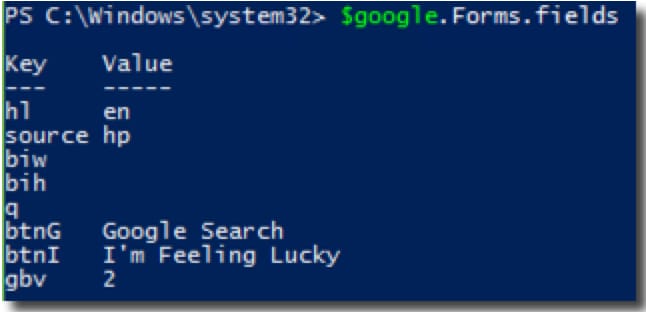
This allows you to filter specific results, such as isolating external links versus internal navigation. You can also target specific HTML elements like input fields. For example, you can inspect what the Google.com search form looks like under the hood:
Let’s take this one step further and download information from a web page. This is particularly useful for digital asset management audits or gathering product images for a catalog. For example, you might want to download all images on a page.
To do this, we’ll also use the Invoke-WebRequest -UseBasicParsing parameter. This option can reduce parsing overhead in some Windows PowerShell environments. Here’s the process:
For another example, here’s how to use PowerShell to enumerate all images on the CNN.com website and download them to your local computer.
$cnn = Invoke-WebRequest -Uri cnn.com -UseBasicParsing
Once the webpage data is stored in the $cnn variable, the next step is to identify the source locations for the images. Let’s look at the URLs where each image is hosted.
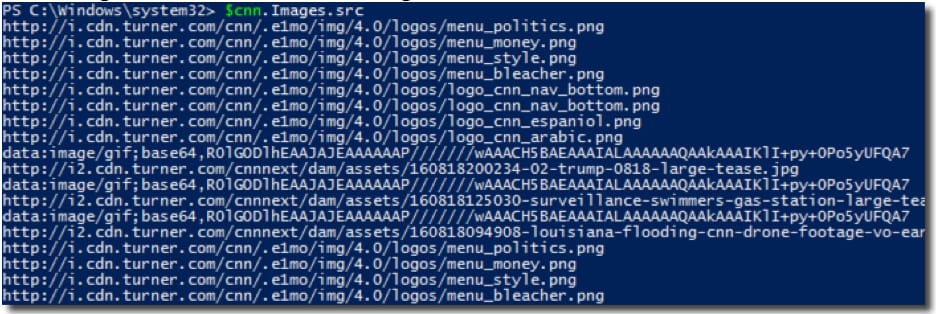
Once you have the URLs, you can use Invoke-WebRequest again. This time, use the -OutFile parameter to send the response to a file stored on your hard drive instead of displaying it in the console.
@($cnn.Images.src).ForEach({
$fileName = $_ | Split-Path -Leaf
Write-Host “Downloading image file $fileName”
Invoke-WebRequest -Uri $_ -OutFile “C:\$fileName”
Write-Host ‘Image download complete’
})
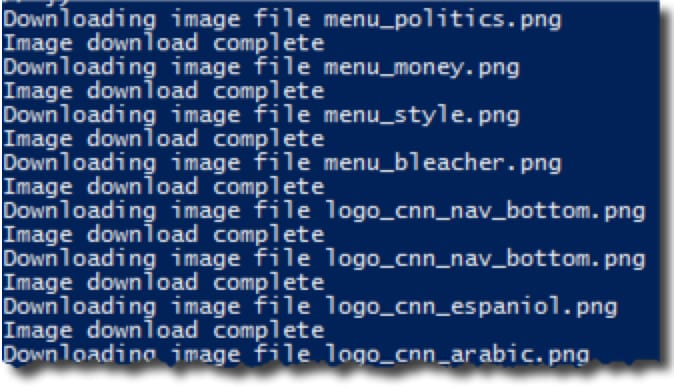
In this example, the images are saved directly to C:\, but you can easily change this to another directory or incorporate the workflow into larger file automation tasks like syncing folders with PowerShell.
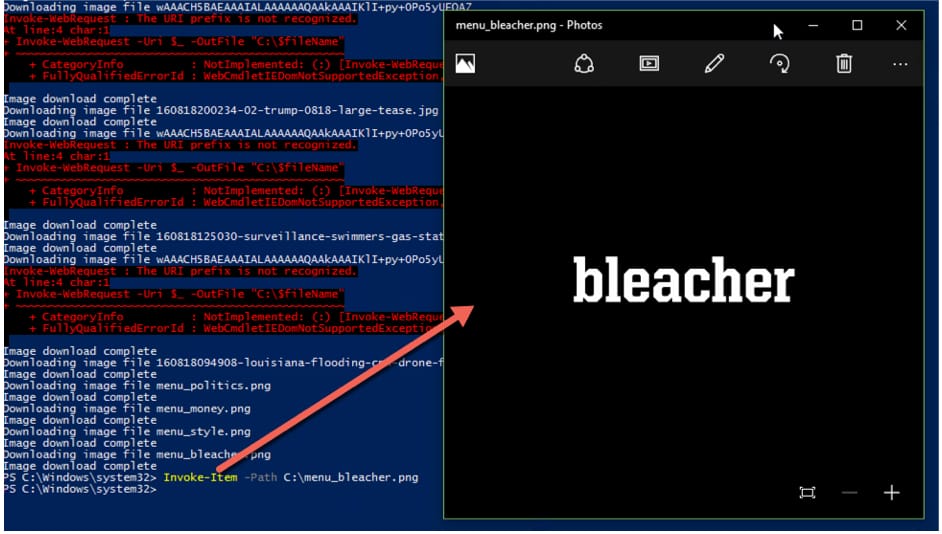
If you want to open the images directly from PowerShell, use the Invoke-Item cmdlet to launch the file’s associated viewer (usually the default Photos app in Windows). Below, you can see that Invoke-WebRequest downloaded an image from CNN.com with the word “bleacher.”
Use the code in this article as a template to build your own tool. For example, you could create a PowerShell function called Invoke-WebScrape with parameters like -Url or -Links. Once you have the basics down, you can build a customized tool and apply it in many different ways.
If you’re new to web scraping, Trotta suggests starting with foundational skills. “Familiarity with HTML structure and basic CSS selectors is fundamental to parsing web content. Without this familiarity, you cannot scrape web pages,” Trotta explained. “Focus on small, manageable projects at first, such as extracting headlines from a news website, to build confidence. Then, scale to improve.”
Trotta suggests incorporating the following features to improve performance and reliability in PowerShell scripts:
With these approaches, developers can create scripts that are efficient and resilient.
Mark Fairlie contributed to this article. Source interviews were conducted for a previous version of this article.