Business.com aims to help business owners make informed decisions to support and grow their companies. We research and recommend products and services suitable for various business types, investing thousands of hours each year in this process.
As a business, we need to generate revenue to sustain our content. We have financial relationships with some companies we cover, earning commissions when readers purchase from our partners or share information about their needs. These relationships do not dictate our advice and recommendations. Our editorial team independently evaluates and recommends products and services based on their research and expertise. Learn more about our process and partners here.


The hardware you choose for your point-of-sale (POS) system shapes your daily operations in ways that go beyond just processing payments. The right POS hardware setup makes checkout faster, reduces errors, fits your physical space and scales with your business. The wrong hardware creates friction for your staff and customers, locks you into inflexible contracts and costs more than it should.
This guide covers every major category of POS hardware, explains what each component does, provides typical price ranges and helps you determine which pieces are essential for your type of business. Whether you’re equipping a single register for a small retail shop or building out a multi-terminal restaurant floor, this is the reference you need to make informed purchasing decisions.
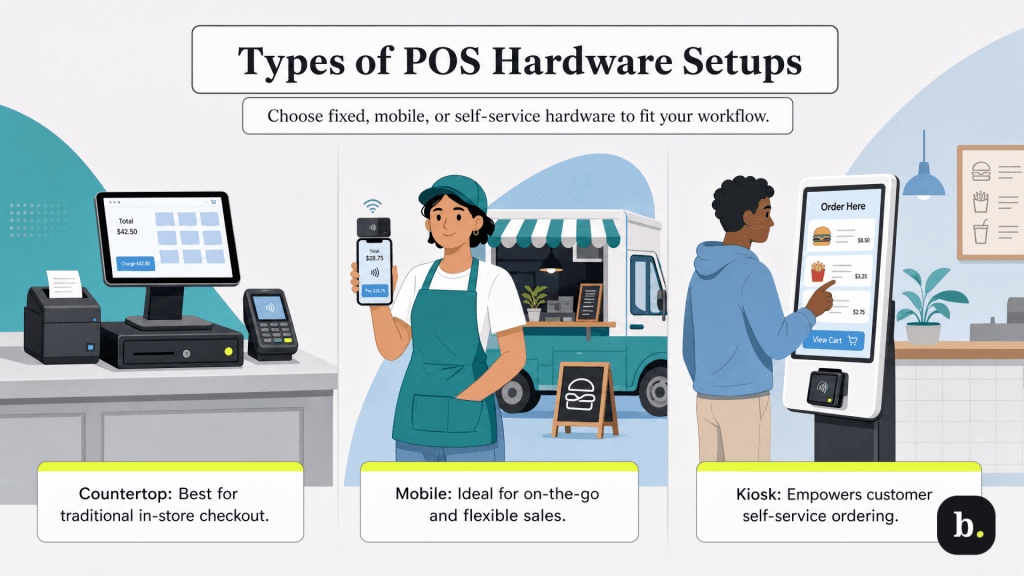
Before diving into individual components, it helps to understand the broad categories of POS hardware setups, because the right configuration depends on how and where you do business. There are three types of POS hardware setups:
Many businesses use a combination of these setups. A restaurant might have fixed registers at the host stand and bar, mobile tablets for tableside ordering and a self-service kiosk for takeout orders. A retailer might use countertop terminals for the main checkout and mobile readers for line-busting during peak hours. Your hardware plan should reflect your actual workflow, not just the primary checkout scenario.
Below, learn about the essential equipment that makes up POS hardware, from all-in-one terminals to peripherals like barcode scanners and customer-facing displays.
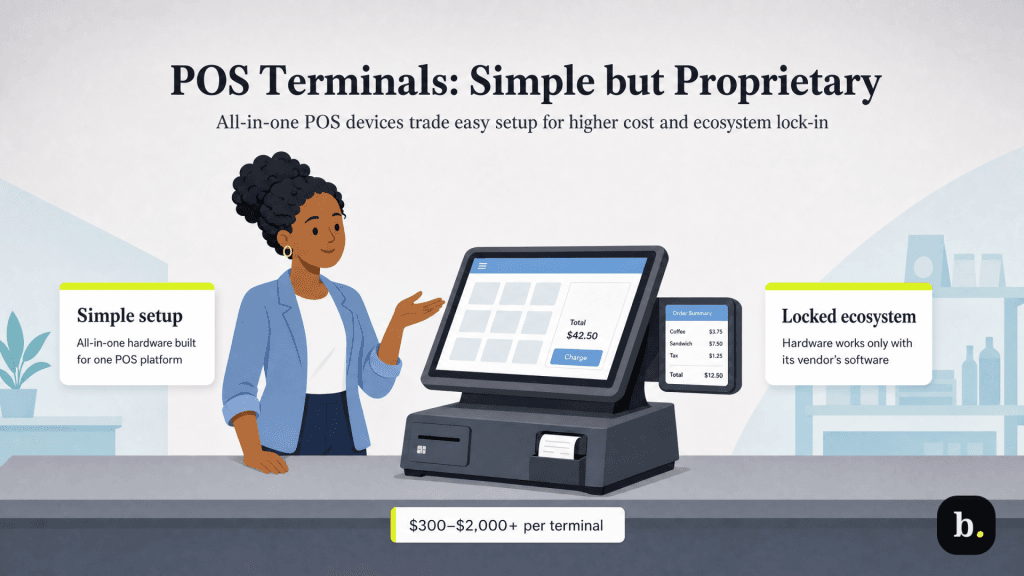
POS terminals are all-in-one proprietary devices designed specifically for point-of-sale use. Products like the Clover Station, Square Register and Toast terminal fall into this category. These units typically combine a touchscreen display, a built-in or tightly integrated card reader, and sometimes a built-in receipt printer into a single countertop unit.
The primary advantage of a dedicated POS terminal is simplicity. Because the hardware is purpose-built for the vendor’s software platform, there are minimal compatibility concerns. Setup is straightforward, the devices are designed for the rigors of daily commercial use, and the countertop footprint is typically clean and compact. Many terminals also include a customer-facing screen for order review and tip prompting.
The trade-off is ecosystem lock-in. Proprietary terminals are designed to work exclusively with their associated POS platform. If you decide to switch from Clover to Square, for example, your Clover hardware won’t be compatible with the Square software. This is an important consideration for businesses that may want to change POS providers in the future. Proprietary terminals also tend to carry a higher upfront cost than tablet-based alternatives.
Typical price range: $300 to $2,000 or more, per terminal, depending on the model and included features.
Many of the most popular POS platforms — including Square, Lightspeed, Shopify and Toast — are designed to run on standard iPads or Android tablets. Using a tablet as your POS terminal offers a lower entry cost, a familiar user interface for staff and the flexibility to repurpose the tablet if you change systems. Android support is limited on POS platforms, so confirm compatibility with your chosen software before purchasing.
To convert a tablet into a functional register, you’ll pair it with a stand or commercial enclosure. Basic swivel stands typically cost $30 to $100, while commercial-grade enclosures with integrated card reader mounts, cable management and theft deterrence range from $100 to $400, with premium kiosk-style setups exceeding that range. The enclosure you choose should be sturdy enough to handle daily use, position the screen at a comfortable angle for your staff, and ideally allow the tablet to rotate toward the customer for signature or tip prompting.
The main limitation of tablet-based setups is that they require more peripheral hardware to build a complete system. Unlike an all-in-one terminal that may include a built-in card reader and receipt printer, a tablet requires those components to be added separately. In high-volume environments, tablets may also be less durable than purpose-built commercial hardware, though a quality enclosure helps mitigate this.
Typical price range: $300 to $1,000 for iPads; $100 to $400 or more for Android tablets.
>> Learn about the benefits of restaurant POS systems.
There are two main types of card readers.
Mobile card readers
Mobile card readers are small, portable devices that connect to a phone or tablet via Bluetooth (or in older models, the audio jack). They accept chip (EMV), contactless/NFC (tap) and sometimes magstripe payments. These readers are often provided free or at very low cost by the POS provider as an incentive to use their platform, since the provider earns revenue from the processing fees on every transaction.
Mobile readers are ideal for businesses that need portability: market vendors, food truck operators, pop-up retailers, freelance service providers and anyone who needs to accept payments away from a fixed location. They’re also useful as a backup reader for brick-and-mortar businesses in case the primary terminal malfunctions.
Typical price range: $0-$100, with basic magstripe readers often free and Bluetooth-enabled chip and contactless readers typically costing $30 to $80.
Countertop card readers
Countertop card readers are designed for fixed checkout locations. They sit on the counter facing the customer, who inserts their chip card, taps their contactless card or phone, or swipes their magstripe. Many countertop readers also support PIN entry for debit transactions. These readers connect to the POS terminal via USB, Bluetooth or Wi-Fi, depending on the model.
Typical price range: $50 to $400 or more, depending on build quality, connectivity options, and whether the device includes a display screen and software-driven features.
Accepting contactless payments — including tap-to-pay cards, Apple Pay, Google Pay and Samsung Pay — is now a baseline expectation in most markets. Customers increasingly prefer the speed and convenience of tapping their card or phone rather than inserting a chip card and waiting for the transaction to process. Virtually all current-generation card readers support NFC contactless payments, but if you’re purchasing used or older-model equipment, verify NFC capability before buying.
Receipt printers come in two main types.
Connection options include USB, Bluetooth, Wi-Fi and Ethernet. Match the connection type to your POS system’s supported interfaces and your physical setup. Wi-Fi and Bluetooth printers offer more flexibility in placement since they don’t require a cable run to the terminal, but wired connections (USB or Ethernet) tend to be more reliable in high-volume environments.
Many businesses are reducing their reliance on printed receipts by offering emailed or texted receipts, but most still need at least one receipt printer for handling returns, printing kitchen orders or accommodating customers who prefer paper.
Typical price range: $100 to $500 or more, depending on features and durability.
A cash drawer is a straightforward piece of hardware that opens automatically when a cash transaction is processed through the POS system. It connects to the system through the receipt printer via an RJ12 cable — not directly to the POS terminal. When the POS sends a print command for a cash transaction receipt, the printer triggers the drawer to open.
Standard-size drawers fit under most counters and offer full bill and coin compartments. Compact models are available for tight spaces or mobile setups. Even businesses that process the vast majority of their transactions via credit card typically keep a cash drawer on hand. Cash transactions, while declining in share, still occur, and having a secure, organized drawer is necessary for starting-till management and end-of-day reconciliation.
Typical price range: $50 to $250, depending on durability and integration features.
Barcode scanners speed up checkout and reduce manual entry errors by reading product barcodes and automatically adding the corresponding item to the transaction. Handheld scanners are the most common type and are available in wired (USB) and wireless (Bluetooth) configurations. Presentation or countertop scanners are hands-free devices mounted at the checkout station — the cashier or customer passes the item over the scanner, similar to a grocery store self-checkout.
When choosing a scanner, consider whether you need 1D or 2D scanning capability. Standard 1D scanners read traditional barcodes (UPC, EAN). 2D scanners can also read QR codes and codes displayed on smartphone screens, which is useful if you accept mobile coupons, digital loyalty cards or ticket-based entry. Barcode scanners are essential for retail businesses with barcoded inventory, but are generally not needed by restaurants, salons or service-based businesses.
Typical price range: $50 to $300 or more, depending on scanning capability and durability.
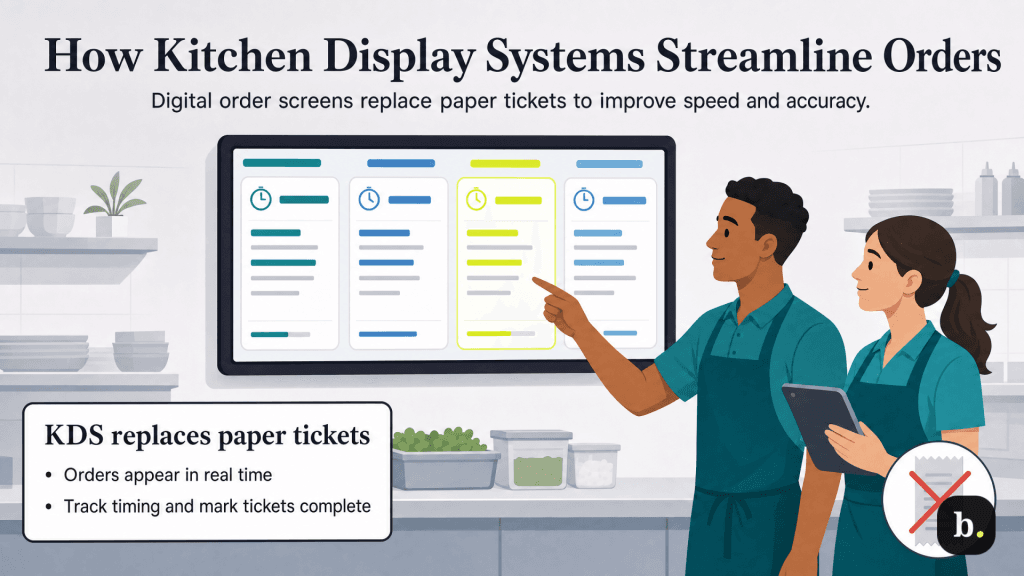
A kitchen display system (KDS) replaces paper ticket printers in a restaurant kitchen with a digital screen that shows incoming orders in real time. Orders placed at the register or through online ordering appear on the KDS immediately. Kitchen staff can view order details, track how long each order has been in the queue, prioritize items and mark orders as complete — all without handling paper tickets.
The benefits are significant for any food-service operation. A KDS eliminates the problems associated with paper tickets: illegible handwriting, lost or misplaced tickets, and the inability to easily reprioritize the queue. Digital displays also provide timing data that helps kitchen managers identify bottlenecks and improve performance over time.
KDS hardware typically consists of a commercial-grade display (or a standard tablet running KDS software) mounted in the kitchen. Not every POS platform supports a KDS integration, so confirm compatibility before purchasing. Some systems use proprietary KDS hardware, while others allow you to run KDS software on any compatible tablet.
Typical price range: $150 to $900 or more per screen, depending on size, durability, and whether the unit is a basic display or a full commercial-grade touchscreen KDS terminal.
Customer-facing displays are screens positioned toward the customer during checkout. They serve multiple functions: showing the itemized order total for transparency, presenting tip prompts, displaying marketing messages or loyalty program information, and allowing the customer to confirm their order before payment.
Some POS terminals include a built-in customer-facing screen. Others offer it as an add-on display that mounts on the existing terminal stand. Customer-facing displays have become particularly important for businesses that rely on tips. The visual tip prompt on a customer-facing screen has been shown to increase tip rates compared to paper receipts alone, making the display a revenue-generating investment for restaurants, cafes and service businesses.
Typical price range: $75 to $500 or more for standalone displays, depending on features and configuration.
Cloud-based POS systems depend on a reliable internet connection, which makes your networking infrastructure an important part of the hardware equation. A quality router and modem are the foundation. For your primary POS terminal, a hardwired Ethernet connection is more stable and reliable than Wi-Fi, particularly during peak transaction periods when network congestion could cause processing delays. Wi-Fi is acceptable for mobile devices and secondary terminals.
Some POS systems offer an offline mode that allows the terminal to continue processing transactions even when the internet connection drops. Offline transactions are stored locally and sync to the cloud once connectivity is restored. This feature is important for businesses in areas with unreliable internet service, as well as for mobile and outdoor operations where connectivity is inherently variable. If offline capability is critical to your business, confirm that your POS platform supports it and understand any limitations. Some offline modes accept only certain payment types or restrict the number of transactions that can be processed before syncing.
For businesses where losing the ability to process payments would be catastrophic, consider maintaining a backup mobile hotspot you can switch to if your primary internet connection goes down. The cost of a basic cellular hotspot plan is minimal compared to the revenue lost during an outage.
Beyond the core hardware components detailed above, several accessories may be relevant depending on your business type. Tablet mounts — countertop, wall-mount or floor-stand configurations — are needed for any tablet-based setup and for self-service kiosks. Scales are necessary for businesses that sell by weight, such as delis, bakeries, candy shops and produce markets. Label printers are used in retail for price tags and in food service for packaging labels. Some restaurant POS systems also support caller ID integration, which pulls up a customer’s order history when a phone order comes in.
Before purchasing any accessory, verify compatibility with your POS platform. Not every add-on works with every system, and using unsupported hardware can create reliability issues that are difficult to troubleshoot. Your POS provider’s website will typically list approved or recommended accessories.
There are three main approaches to acquiring POS hardware, and each has distinct trade-offs.
Be careful with refurbished hardware. Buying refurbished tablets and standard peripherals (printers, scanners, cash drawers) can save money without significant risk. However, refurbished proprietary terminals may not be transferable between merchant accounts or be eligible for warranty support from the POS provider.
The right POS hardware configuration depends more on your business type and daily workflow than on any feature comparison chart. Start by considering how transactions actually happen in your business, and let that drive your hardware decisions.
The chart below identifies the hardware to prioritize based on business type and the key factors to consider when deciding between solutions.
Business Type | Priority Hardware | Key Considerations |
|---|---|---|
Retail | Terminal/tablet, card reader, barcode scanner, receipt printer, cash drawer | Barcode scanning speed, inventory integration, durability for high-volume use |
Full-Service Restaurant | Terminal/tablet, card reader, KDS or kitchen printer, customer-facing display | Kitchen routing, tableside ordering capability, spill/heat resistance, tip prompting |
Quick-Service Restaurant | Terminal/tablet, card reader, KDS, self-service kiosk | Speed of checkout, order accuracy, self-service to reduce labor |
Mobile/Field | Smartphone or tablet, mobile card reader | Portability, battery life, cellular connectivity, offline mode |
Multi-Location | Networked terminals, centralized management dashboard | Consistent hardware across locations, remote management capability, scalability |
Regardless of business type, balance your upfront budget against long-term cost and durability. The cheapest hardware may need replacing sooner, while overbuying features you won’t use wastes money. Focus on compatibility with your chosen POS software, build quality appropriate for your environment and the total cost of ownership over the expected life of the equipment.
POS hardware is modular by design, and you don’t need to buy everything at once. Start with the essentials for your operation — a terminal or tablet, a card reader, and one or two key peripherals — and expand as your business needs become clearer through daily use. Many businesses find that their initial assumptions about what they need change after a few weeks of live operations.
Prioritize three things above all: compatibility with your chosen POS software, durability for your specific environment and total cost of ownership rather than sticker price. A well-chosen hardware setup that fits your business’s workflow will serve you reliably for years. A poorly matched setup will create daily friction that adds up to real lost productivity and revenue over time.
